Hostinger AI Website Builder Tutorial | How to Launch Your Site with AI Tools Easily
Affiliate disclosure: If you buy through my link, I may earn a small commission. It doesn’t change the price you pay, and it doesn’t affect how I describe the tool.
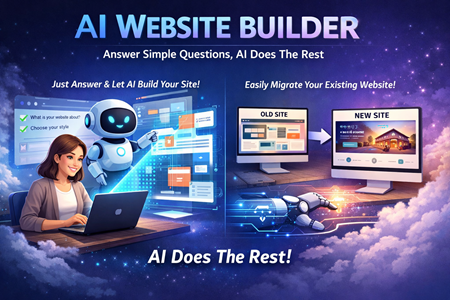
If you want a site online without messing with code, Hostinger’s AI Website Builder is built for that. In the video walkthrough you shared, the whole flow is basically: start a new site, pick the AI builder, describe what you want, then customize and publish.
Below is the same process, cleaned up into a practical step-by-step you can follow.
Step 1: Start a new website in Hostinger
From your Hostinger dashboard:
- Go to Websites
- Click Create or migrate website
- Choose Create a new website
- Pick AI Builder (instead of WordPress)
The creator in the video frames WordPress as a better fit if you already have more experience. If your goal is “get something live fast,” AI Builder is the simpler starting point.
Step 2: Choose domain (or use the free one)
At this stage you’ll usually see domain options:
- Use the free domain included in your plan (common on longer-term plans)
- Use a temporary domain for now
- Connect a domain you already own
If you’re moving fast, using the included domain (or temporary domain) keeps you out of “domain decision paralysis” and lets you publish first, refine later.
Step 3: Generate your first draft with one prompt
This is the “700-character description” moment.
You’ll enter:
- Brand name
- Site type (blog, portfolio, business, etc.)
- A description of what the site is and what it should include
What works best is being specific about structure. For example:
- Who it’s for
- What you offer
- Key sections you want on the homepage
- Any tone/style preferences
A simple prompt template you can copy
- “Create a website for [business type] serving [audience]. Include Home, About, Services, and Contact. Make it clean, modern, and easy to read. Use short sections, clear buttons, and a simple color palette.”
Generate the site, then judge it like a draft, not a finished product.
Step 4: Learn the editor basics (sections vs elements)
The builder is drag-and-drop, but it helps to know how it’s organized:
- Pages: Home, About, etc.
- Sections: blocks on a page (hero, features, testimonials)
- Elements: items inside sections (text, buttons, images, forms)
In practice, you’ll spend most of your time doing three things:
- Editing text
- Swapping media
- Reordering sections
Step 5: Link buttons properly (so your site isn’t “pretty but dead”)
One useful part of the walkthrough: buttons often start with no real link.
To fix that:
- Click the button
- Choose Edit button
- Set the link to a page (like “Projects”) or an external URL
- Preview to confirm it actually goes somewhere
This is a small step, but it’s the difference between a site that “looks like a site” and a site that functions.
Step 6: Use AI tools where they actually help
Hostinger includes AI tools, but they’re best used as accelerators, not autopilot.
AI tools mentioned in the transcript
- AI Logo Maker: quick logo drafts (often credit-based)
- AI Writer: generates starter copy for sections
- AI Blog Generator: creates draft blog posts
- AI Heatmap: predicts attention hotspots so you can place key buttons/CTAs smarter
My take based on the walkthrough: the heatmap is the most interesting “non-obvious” tool because it influences layout decisions, not just content volume.
Step 7: Check mobile view before you publish
The transcript calls out switching to mobile view to make sure things don’t look cramped.
Do a quick scan for:
- Headings that break awkwardly
- Buttons too close together
- Sections that feel too tall on mobile
- Images or embeds that dominate the screen
If you fix mobile layout early, you save yourself from future “why is my site ugly on phones?” headaches.
Step 8: Publish (go live) and verify the live site
When you’re ready:
- Click Go Live
- Use the generated live link
- Click around your own site like a visitor would
Quick “launch checklist”:
- All main menu links work
- Buttons go to the right pages
- Contact form submits correctly
- Mobile view is readable
- You have at least one clear call-to-action (contact, book, buy, subscribe)
Who This Tool Is Best For
- Beginners who want a working site without learning WordPress first
- Small businesses that need a basic brochure site (services, contact, about)
- Creators who want a simple portfolio or landing page
- Anyone who wants to publish fast and refine later
Who This Tool Is Not Ideal For
- People who want deep customization without constraints
- Advanced ecommerce needs (large catalogs, complex workflows)
- Developers who prefer full control of code and infrastructure
Practical tips to get better results faster
- Generate 2–3 versions of your site description and compare outputs
- Replace the “stock” text first (headline, subheadline, call-to-action)
- Don’t overbuild on day one: publish, then iterate
- Use the heatmap idea to place your main CTA where attention clusters
Your turn
Have you tried Hostinger’s AI builder yet, or are you still deciding?
If you have, tell me what you built and what annoyed you most during setup. I read those because they usually turn into the next tutorial.