Hostinger AI website builder tutorial | Building a Website With AI!?
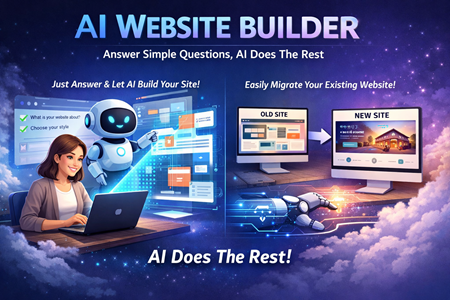
Hostinger’s AI website builder is built for one job: get you from “blank screen” to a real, publishable website fast. The AI can generate layouts, starter copy, and visuals from a short description, and then the editor lets you clean it up without needing design or coding experience. In this tutorial-style walkthrough, I’m focusing on what actually happens once you log in: picking a plan, generating your first draft, editing with AI tools, and getting the site live.
Hostinger plans: Premium vs Business (what matters)
Hostinger usually offers two main website builder plans:
Premium
- Good for basic sites and simple projects
- Fine if you’re mainly using templates and editing manually
Business
- Better if you want the full AI toolset and/or plan to sell online
- Includes more AI features for writing, images, blog help, and SEO tools
If you’re choosing based on “how much time will AI save me,” Business is typically the practical pick. If you’re just testing the builder or building a straightforward site, Premium can work and you can upgrade later.
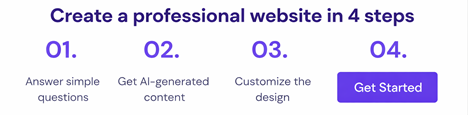
Step 1: Create a website inside the dashboard
After logging in:
- Go to the Websites area
- Click Add website
- Choose Hostinger Website Builder
- Pick AI builder (or start from templates if you prefer)
You’ll be prompted to enter:
- A site category
- A title / brand name
- A description of what the website is about
That description is the fuel for your first draft. The more specific you are, the fewer re-generations you’ll need.
A prompt format that usually works well
Include:
- What you do + who it’s for
- The main goal of the site (leads, bookings, sales, portfolio)
- The pages you want (Home, About, Services, Contact, etc.)
- Style direction (clean/minimal, bold, playful, modern, etc.)
If the first draft is close but not quite right, regenerate and tweak the description instead of trying to fix everything manually right away.
Step 2: Start with AI, templates, or a hybrid
You’ll generally have three starting routes:
AI-generated site
- Fastest way to get a complete layout
- Best when you want a “starter site” in minutes
Templates
- Good if you want a more controlled layout from the start
- Hostinger has a large template library
Templates + AI (hybrid)
- You choose a template, then AI fills it with relevant content and images
- Often the best balance: strong structure + AI speed
No matter which route you pick, you end up in the same editor.
Step 3: Edit with the drag-and-drop builder (the 80/20)
Hostinger keeps the editor beginner-friendly with a small set of core elements. You can:
- Click any text and rewrite it
- Replace images with uploads or stock assets
- Drag sections up/down to reorder the page
- Adjust fonts and spacing without hunting through menus
A quick way to make the site feel “real” fast:
- Replace the hero headline + subheadline first
- Update the primary button to go somewhere useful (contact, booking, shop)
- Swap the main images so the site stops looking like a demo
Step 4: Use the AI tools to fill content faster
Inside the AI tool area, you’ll typically find options like:
- AI writer for page copy
- AI blog generator for draft posts
- AI image generator for custom visuals
- Logo maker for quick branding
- AI page generator to draft new pages from a description
- SEO assistant for titles, meta descriptions, and keyword guidance
- Some versions include an AI heatmap-style tool that predicts attention hotspots (useful as a directional hint, not gospel)
Two practical rules:
- Treat AI content as a first draft, then edit it to sound like you.
- Watch your AI credits if your plan limits generations.
Step 5: Publish and choose your domain
Publishing is usually a “Go live” flow:
- You’ll get a live link immediately
- You can use a temporary domain or claim a custom domain (often with a first-year free option depending on the plan/promo)
Before you publish, do a fast checklist:
- Mobile view looks clean
- Buttons go somewhere real
- Contact form works (or is removed)
- Footer has basic trust info (email, socials, or address if relevant)
Security and performance basics (what you should know)
Hostinger sites typically ship with:
- SSL included (so your site runs on HTTPS)
- Performance optimizations on the hosting side that help pages load quickly
In real terms: you still need to compress huge images and avoid clutter, but you’re not starting from a slow, unoptimized foundation.
Who This Tool Is Best For
- First-time site builders who want a clean site fast
- Small businesses, creators, and freelancers who need a professional presence
- People who want AI help for copy, visuals, and basic SEO without plugins
Who This Tool Is Not Ideal For
- Developers who need deep custom code control everywhere
- Projects that depend on a large third-party app marketplace
- Large e-commerce stores with advanced inventory and complex workflows