Hostinger AI website builder tutorial | BUILDING A WEBSITE WITH AI!?
“🧨 Need the best AI Website builder for beginners? Grab our deal! 🧨 ✅ Hostinger AI website builder – 86% OFF ➡️ The Hostinger AI Website Builder keeps getting”
A Practical Walkthrough of
Hostinger’s AI Website Builder (2026)
If you’ve ever wanted a clean, professional website without turning it into a weekend-long project, AI website builders are probably on your radar. The pitch is simple: describe what you want, and the builder does the heavy lifting. In this walkthrough-style review, I’m covering what it’s like to actually build a site step-by-step, what’s included in the plans, and where the AI tools help (and where you still need to do some work yourself).
The short version: Hostinger makes it easy to get to a strong “first draft” website fast, and then you polish it into something that feels like yours.
Plans: Premium vs Business (and what you actually get)
The builder comes with two main options: Premium and Business. Both are positioned as affordable compared to a lot of the big-name website builders, and both include some practical basics.
What both plans include
- Free domain for 1 year (nice if you’re starting from scratch)
- Ability to build multiple websites (up to 25 on Premium, up to 50 on Business)
- Access to the website builder and the drag-and-drop editor
When Business makes more sense
If you want the full suite of AI tools or you’re planning to build anything e-commerce-ish, Business is the better pick. The price difference often isn’t huge, and it’s the plan that unlocks the most automation.
Building your site with AI: the “describe it and go” flow
Once your account is set up, the building process is pretty straightforward:
- Go to your Websites area
- Click “Add website”
- Choose Website Builder (or hosting + builder)
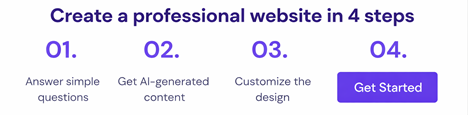
- Describe your site (category + title + a short description)
The key: your prompt matters
The AI generates layout, basic structure, images, and starter text based on what you type. The more specific your description is, the better the output tends to be. If the first result is off, you can regenerate, or tweak the prompt and try again.
A simple way to think about it:
- Vague prompt = generic site
- Specific prompt = closer to a usable draft
Prefer templates? There are a lot
If you’d rather start from a template instead of a full AI-generated build, you can. There are 150+ templates, and there’s also a hybrid option: templates tagged as “personalize with AI,” where the design stays consistent but the AI fills in content based on your brand description.
That hybrid approach is often the sweet spot—less randomness, more structure.
Editing: drag-and-drop without the clutter
Once the site exists (AI or template), you move into editing mode. The editor is built for beginners, meaning it doesn’t drown you in settings.
What you can easily do
- Edit text directly on the page
- Swap images and rearrange sections
- Use pre-built sections for things like:
- Contact forms
- Terms / policy sections
- Shop blocks (if you’re building a store)
The builder uses a limited set of core elements (around 14) which sounds small, but it covers most needs without turning the interface into a maze.
Design controls: colors, fonts, buttons, and “just enough” animation
This is one of the more underrated parts: the color settings show what shades are used across your site and how often each appears. That makes it easier to create a consistent look without guessing.
Fonts are also approachable:
- Curated font pairings to get started fast
- More control if you want it (size, line height, variations)
- A larger font library if you want a different vibe
Buttons come with a few consistent styles, and animations are available—but the best results usually come from using them lightly.
AI tools inside the editor (Business plan)
This is where the builder leans hard into “AI as a helper,” not just a one-time generator.
Tools mentioned include:
- AI image generator (credit-limited)
- AI logo maker (useful for basic branding)
- AI blog generator (good for first drafts you edit)
- AI heat map (predicts where attention might go)
- AI page generator (helps you avoid blank-page paralysis)
- AI product description generator (for e-commerce)
- AI SEO assistant (metadata, sitemap, keyword suggestions, preview)
The SEO assistant, in particular, seems designed to make the basics manageable: add a site description, pick a few keywords, generate, then refine.
Security and performance: the essentials are covered
On the security side, every plan includes SSL, which is table stakes now—especially if you collect any info or run a store.
Performance-wise, the site built in the walkthrough loaded within Google’s commonly recommended window (aiming for content visibility around 2.5 seconds). Fast loading helps with:
- User experience
- Engagement
- Search performance
Bottom line
Hostinger’s AI builder is a strong “get started quickly” tool that doesn’t require prior experience. It’s not a magic wand—you’ll still edit and refine—but it’s a solid way to go from idea → live site without a lot of friction.
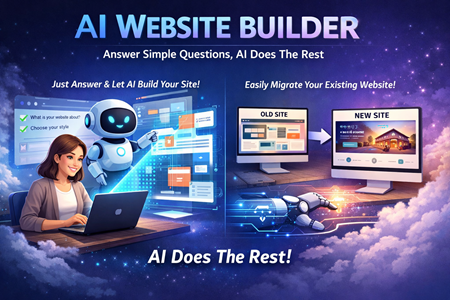
AI makes website creation a breeze!